The sales tax report shows the total sales tax collected for services performed or items sold over the counter (OTC) by providers in your clinic during the selected date range.
Filters for the Report
- Provider Type: Assigned or Treating provider
- Clinic: Select clinic you are needing to generate the report for.
- Providers: CoAction will default to ALL providers but, you can select a specific Provider.
- Action date vs. Date of service. Action date - The date the patient payment was applied to the sales tax charge. Date of Service - The date the Sales Tax was charged to the patient.
- Date Range – Range of days, Day, Week, Month, Quarter and Year.
*Things to Note*
Select the Action Date or Date of Service option depending on your accounting rules or the sales tax laws in your state.
Action Date: When the tax was paid
Date of Service: When service was performed
Total Charges Column: Total Charges column is the original charge amount plus the sales tax. You will also see a charge displayed more than once if the patient paid towards that charge on separate days and would need to be subtracted from the total.
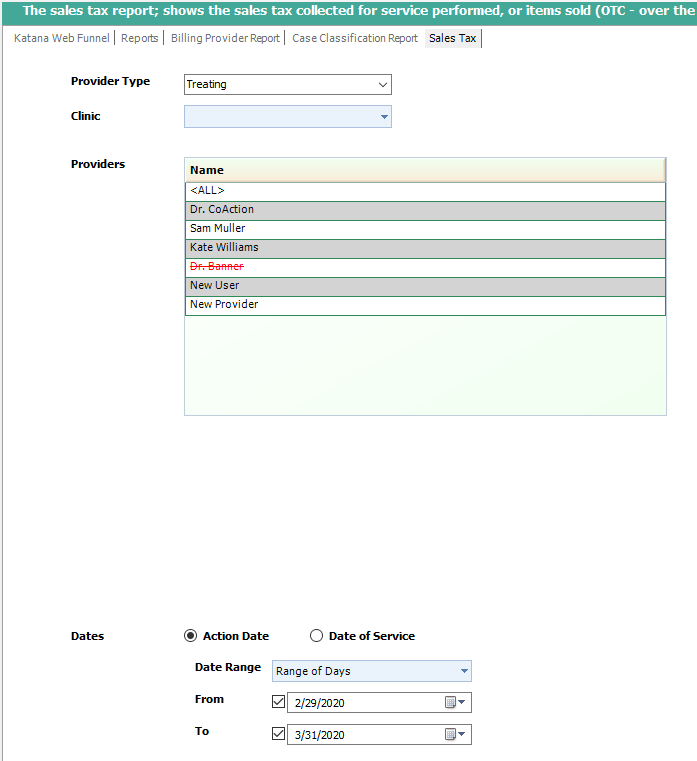
Click Next to generate the report. Also, you can print, or export to Word, Excel or PDF.
To Download/Print a Report
All reports will display a tool bar at the top of the page when generated.
You will be able to Print and Export the document. You will see the Red Circle is highlighting the Print button and the Red Arrow is pointing to the Export options. X=Excel, A=Adobe and W=Word.

- Support Information -
If you have any questions or need assistance with this process please contact Support by:
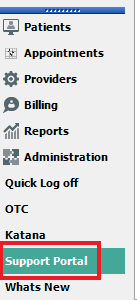
Live chat: Click the 'Support Portal' button in your main toolbar (on left-hand side), click the green 'Support' box in bottom right of screen.***This has the fastest response time***
Phone: 909-378-9514
Email: Support@coactionsoft.com
Business hours: Monday-Friday, 8:00am-6:00pm CST
Comments
0 comments
Article is closed for comments.