Step 1) Go to Patients file - Open file
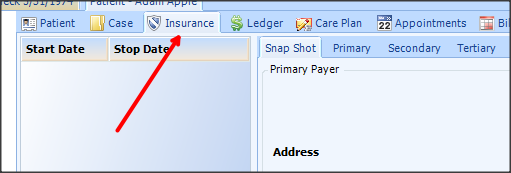
Step 2) Select Insurance tab
Step 3) Select Add/Edit Button on bottom left of the insurance tab
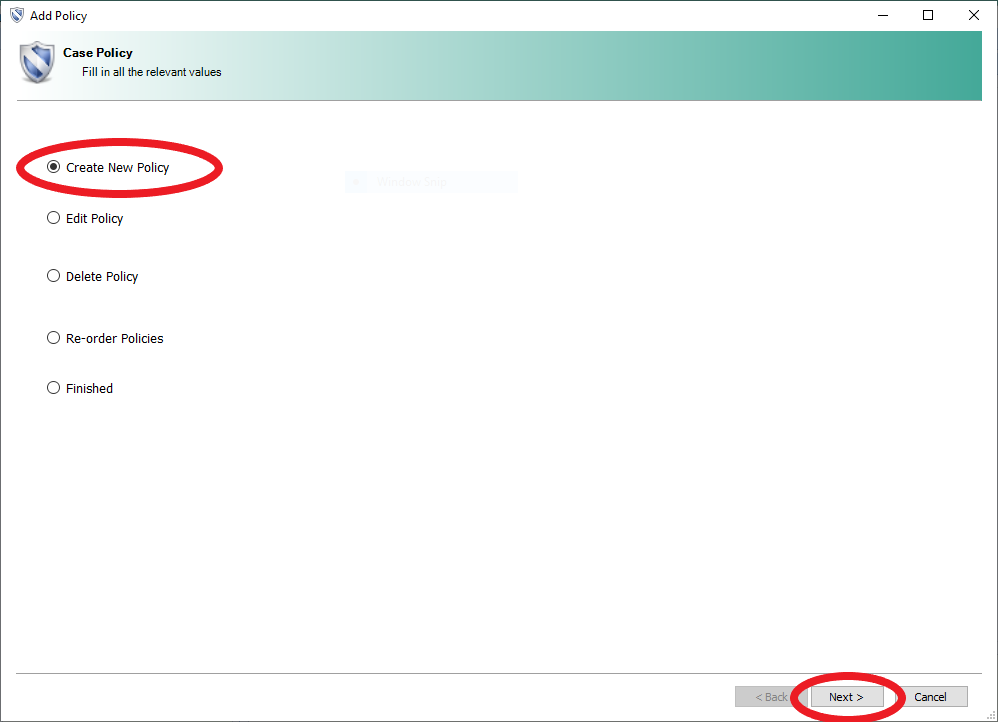
Step 4) Select Create New Policy, Click on Next
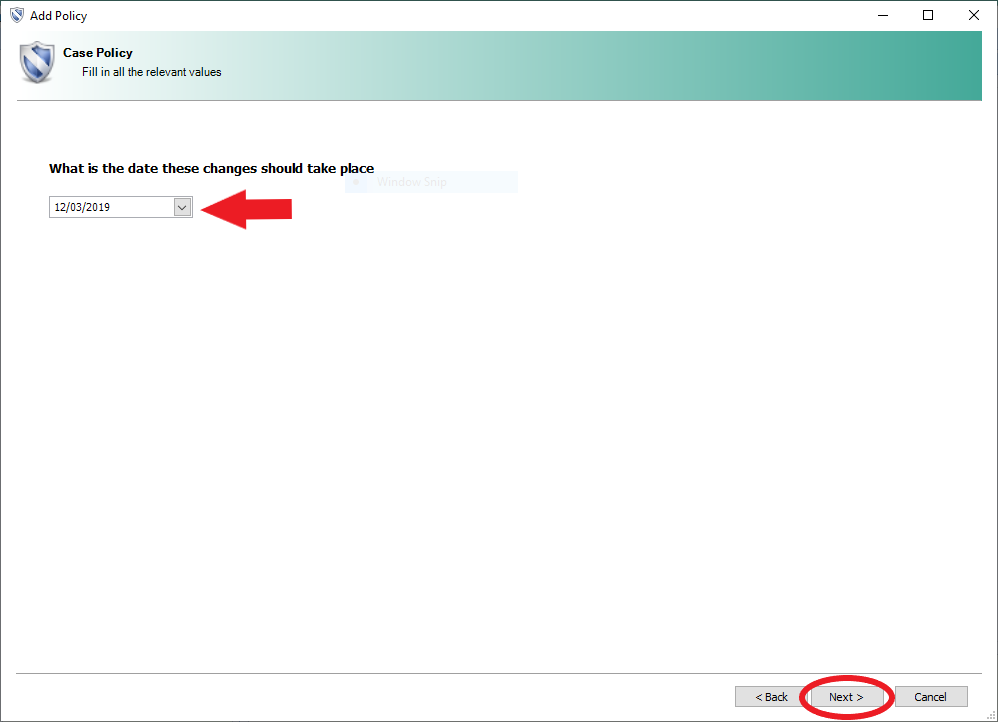
Step 5) New Primary, Select Next (bottom right)

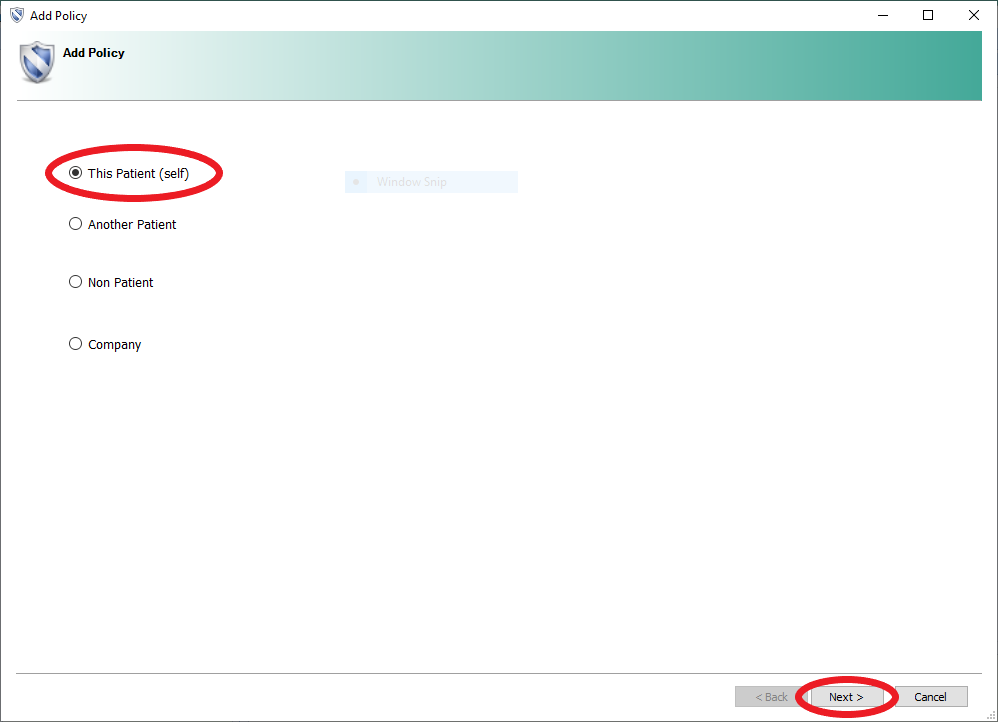
Step 6) Select Policy Holder ( Self, Another patient, Company or Non Patient),
Click on Next
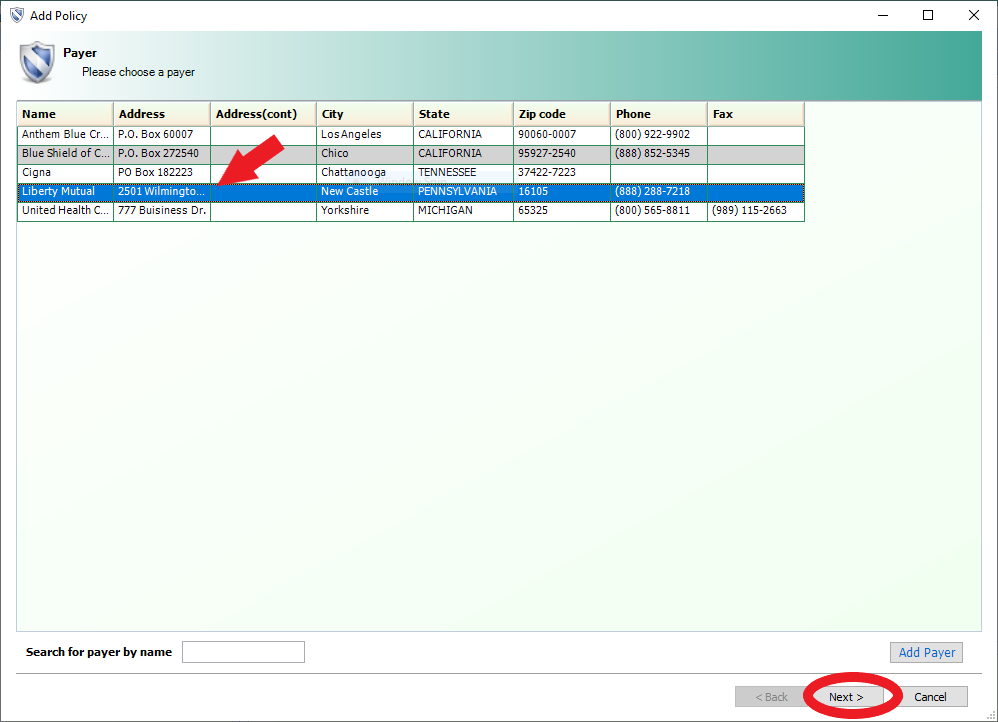
Step 7) Select Insurance payer, Click on Next
Step 8) Enter all the information needed, Click on Next
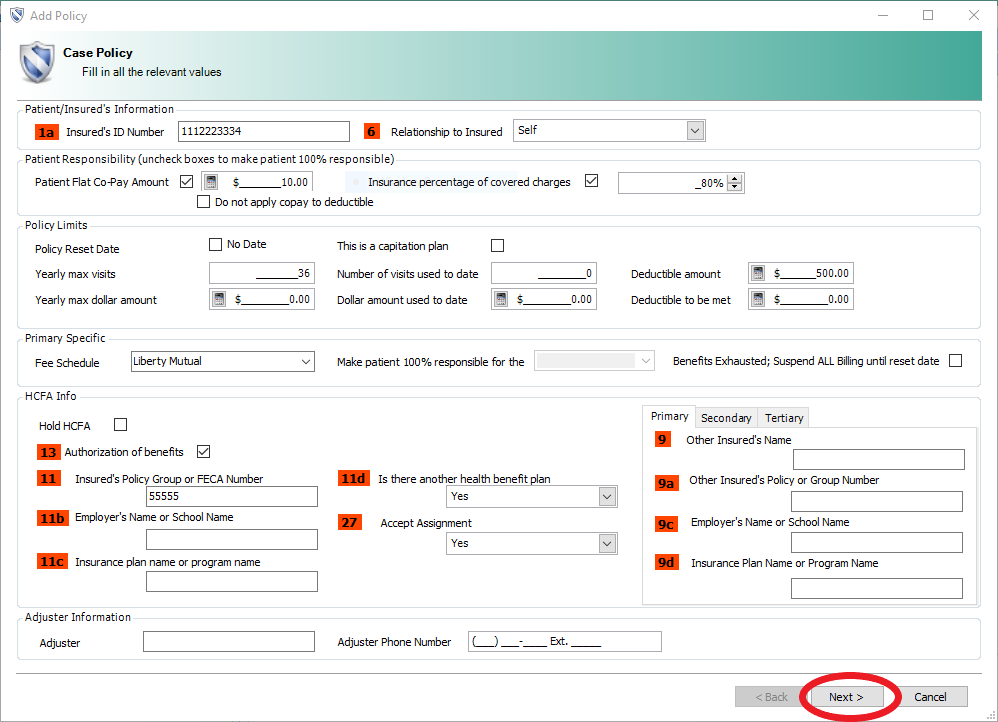
Step 9) Instead of Selecting Finished- you will select CREATE NEW POLICY again to enter secondary insurance
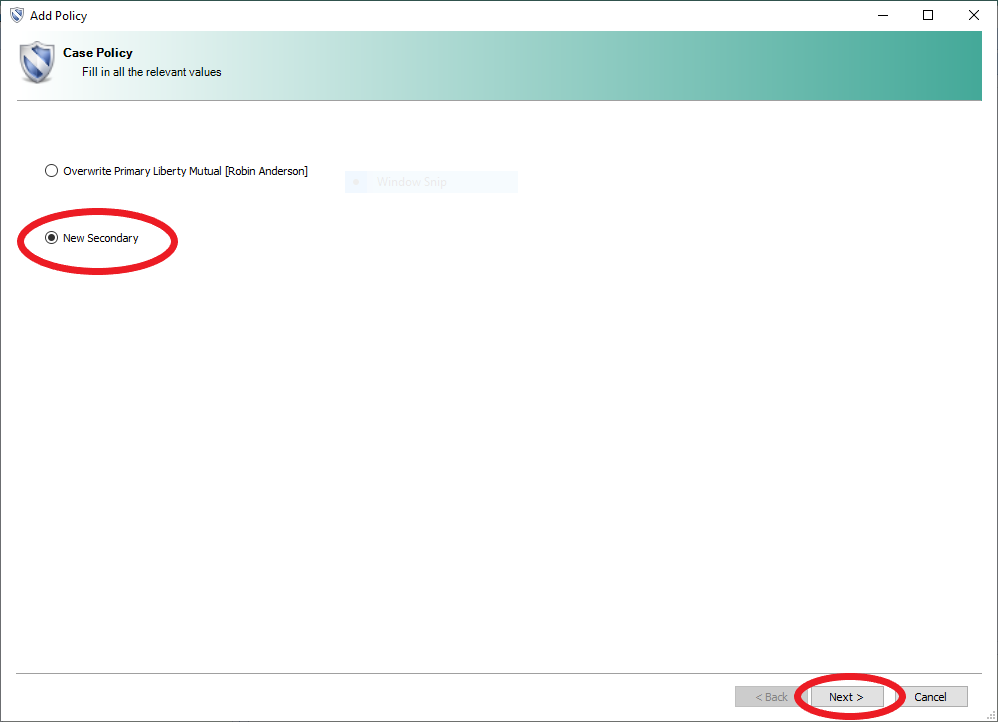
Step 10) Select New Secondary, Click on Next
Step 11) Select Policy Holder ( Self, Another patient, Company or Non Patient), Next
Step 12) Select Insurance payer, Click on Next
Step 13) Add in all secondary info (including all secondary info under the Primary tab of the box 9s area)
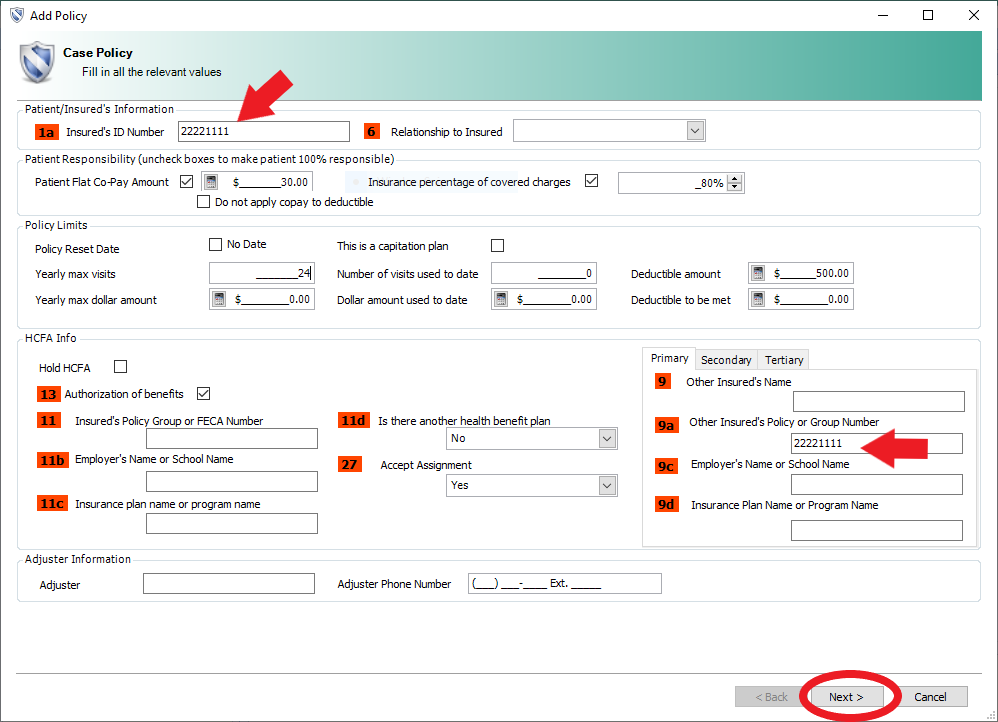
*** Please note Secondary info is placed on Primary tab of box 9s area. The reason for this is it needs to print on Primary HCFA so that the primary knows who to forward claim to.***
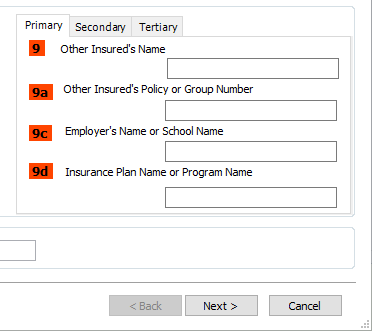
Select Next button
Step 14) Select Finished, Click on Next
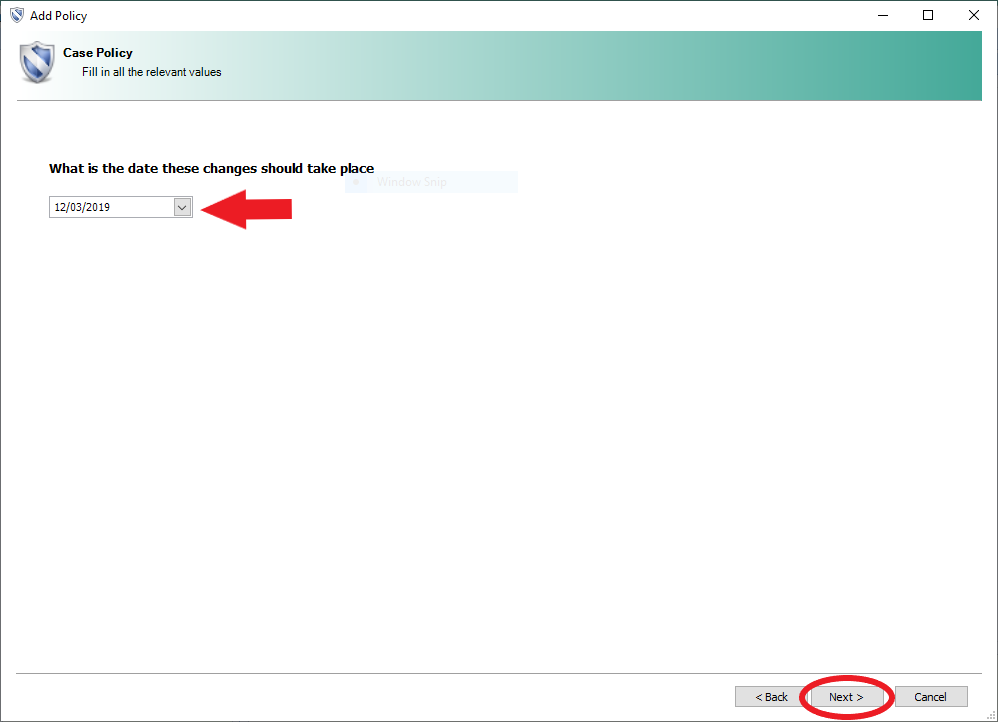
Step 15) Select Start date (Make sure it goes back far enough to cover all dates of service), Click on Next
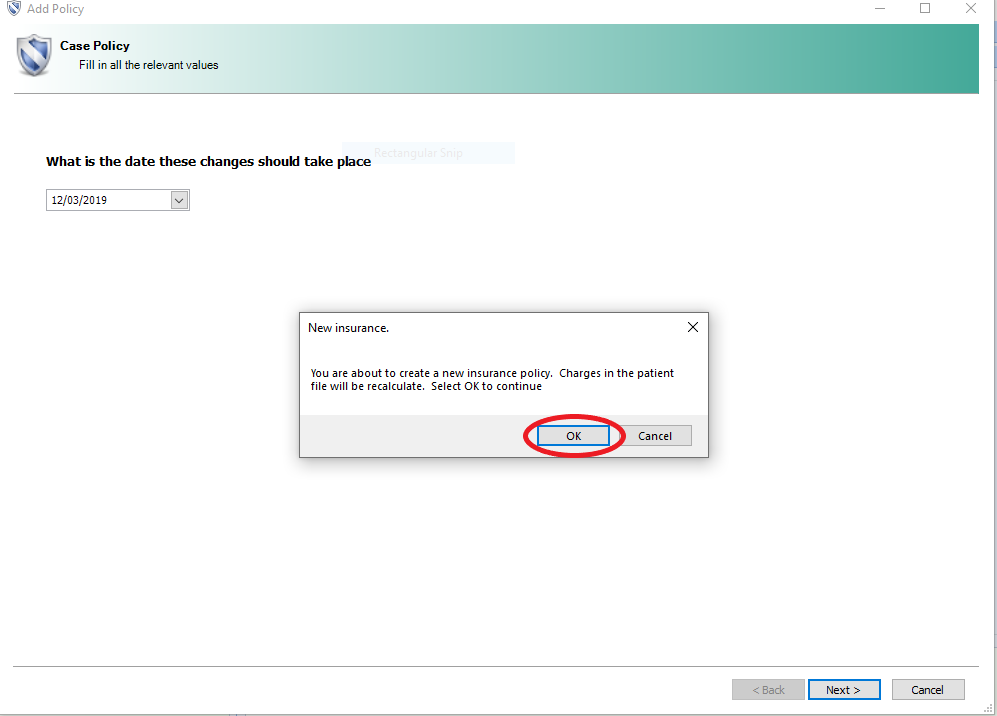
Step 16) Select Ok on the pop up window
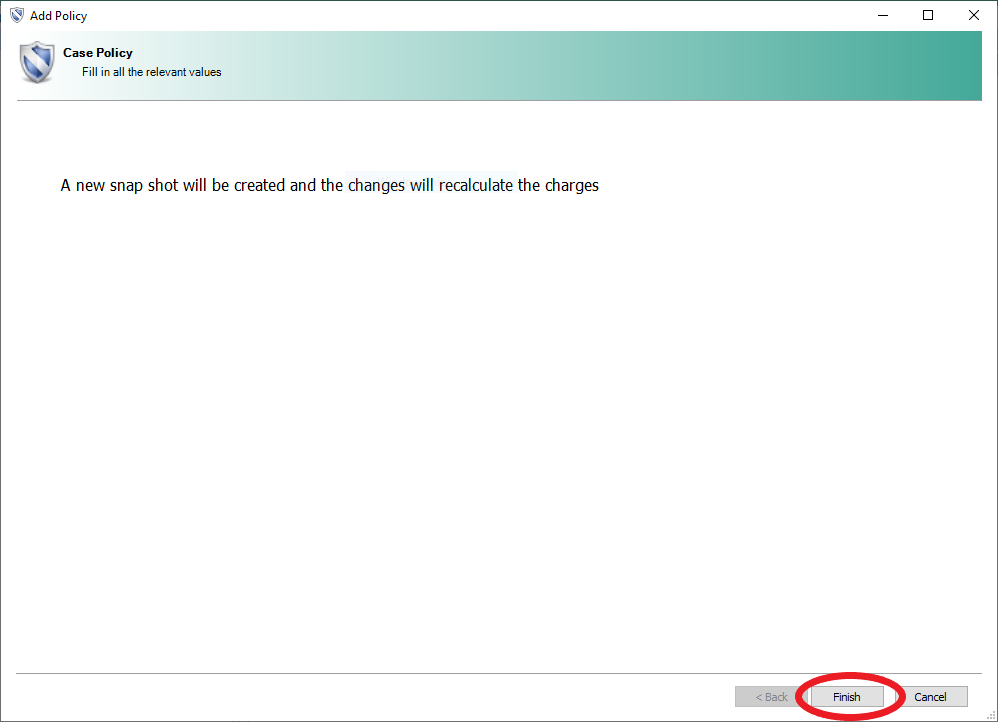
Step 17) Select Finished and you are all done!!
***To see changes made to insurance tab, please close out of the patient file and open again to reflect changes.***
- Support Information -
If you have any questions or need assistance with this process please contact
Support by:
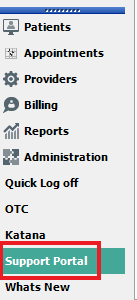
Live chat: Click the 'Support Portal' button in your main toolbar (on left-hand side) within Katana, click the green 'Support' box in bottom right of screen.***This has the fastest response time***
Phone: 909-378-9514
Email: support@coactionsoft.com
Business hours: Monday-Friday, 8:00am-6:00pm CST
Comments
0 comments
Article is closed for comments.